Table of contents
1. Starting Installation
2. Customizing Memory Usage
3. Install GRUB
4. Install coLinux
5. Network Configuration
6. Insalling the Operating System
7. Setup root and other accoun(s)
8. Setup Keyboard, Mouse, Sound, Graphical Preferences
9. Starting TopoplogiLinux in Windows
- Insert the TopologiLinux CD 1
- Autorun should start up the installation.
- If nothing pops up, then go to "My Computer" and right click on the CD-Rom Drive and choose Open.
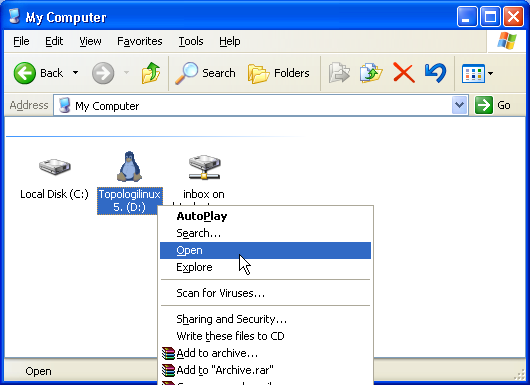
- Double Click on Topologilinux-setup.exe

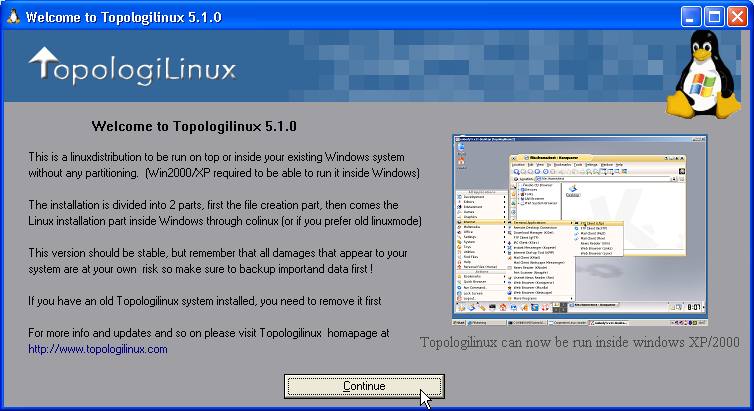
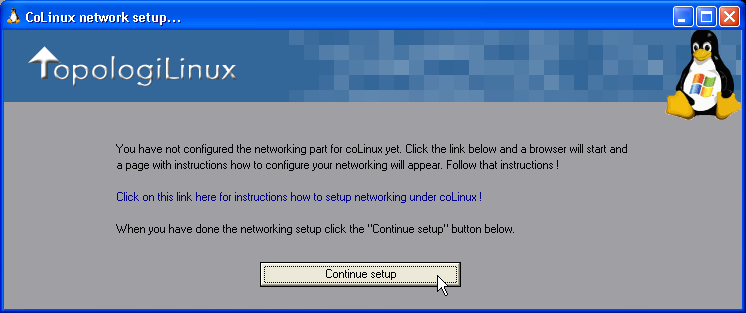
- When the following window pops up, then click “Continue”
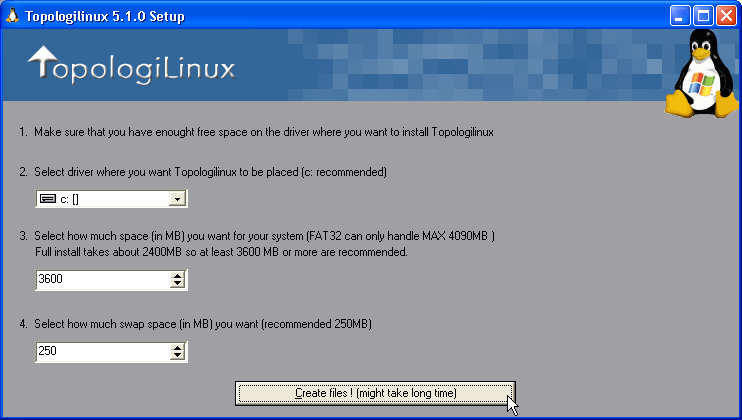
- Customize you memory preferences.
- Modify the options to mach the following window
- This is done to optimize your installation
- You may increase the amount of space allocated to each option
- The process of allocating the memory might take some time. The following dialog will pop up to indicate the process.

- The process takes about 8 minutes on a Dell D600.
- The following folder is created in you C:\ Drive.

- At the end of the process the following dialog will appear:
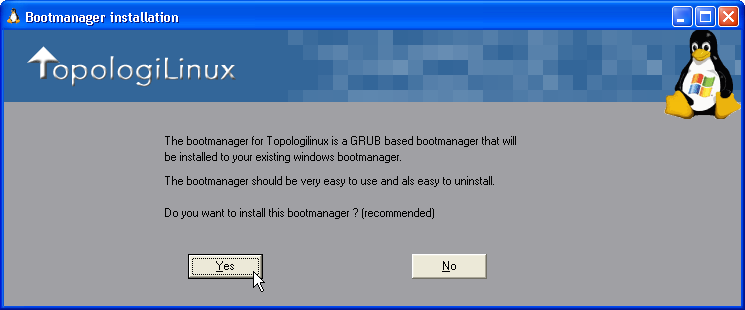
- Select “Yes” to install GRUB the bootloader.
- In the next window, select the kernel
- bareacpi, i For laptops with ACPI support
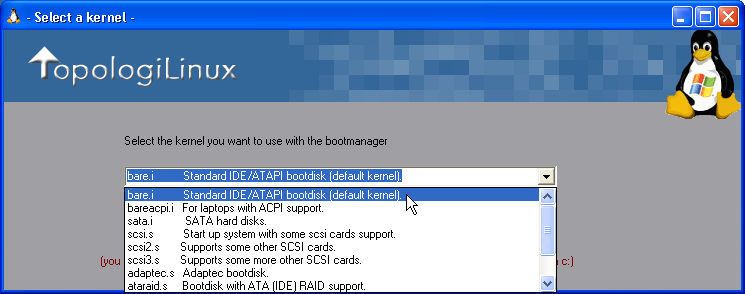
- In the dialog that pops up, select “Yes” to install the coLinux that will give you a graphical interface.

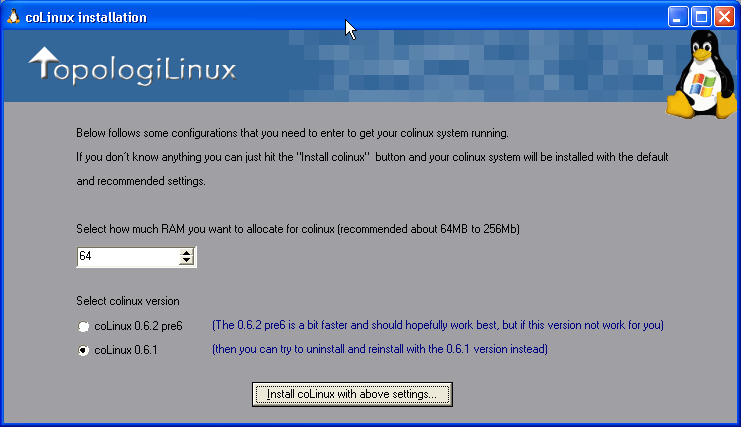
- In the next dialog box, you should be careful:
- If you have a Dell C500, C510, C600, C640 select 64 MB
- If you have a Dell D600 or higher, select 100 MB and choose coLinux 0.6.1
- Click “Install coLinux with above settings”
- When the following dialog box appears, select “Continue Anyway”

- Go to the “Control Panel”

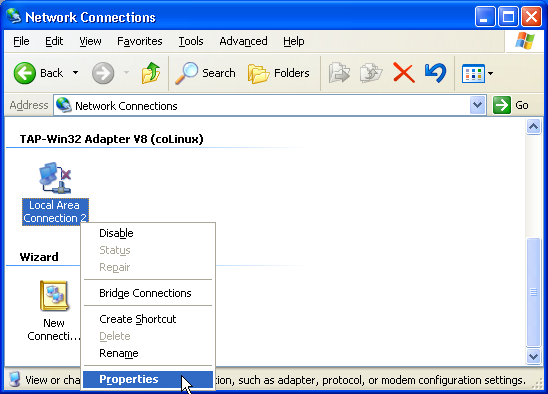
- Then go to “Network Connections”

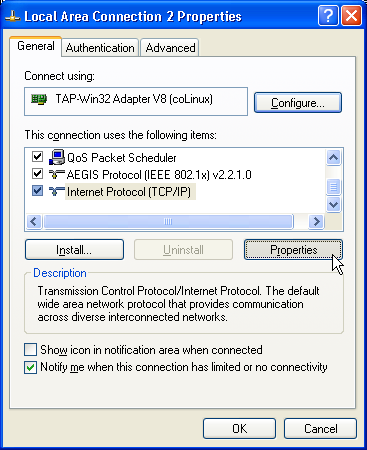
- Go to “Local Area Connection 2” and right click on it. Select Properties:
- Scroll down to see the “Internet Protocol (TCP/IP)”
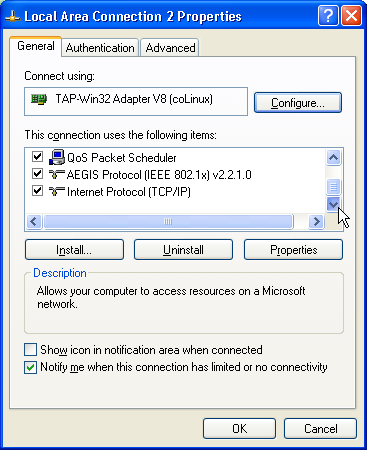
- Select “Internet Protocol (TCP/IP) and click on Properties:
- Select “Use the following IP address” and input
- Under IP Address: 192.168.0.1
- Subnet mask: 255.255.255.0
- And Click “OK”

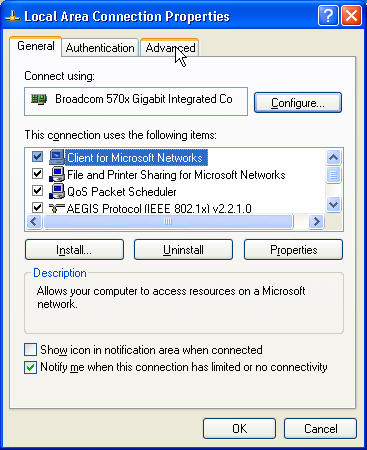
- Close the previous dialog box and go to “Local Area Network”, right click on it and go to Properties.

- Then, go to Advanced
- Select “Allow other network users to connect through this computer’s Internet connection”
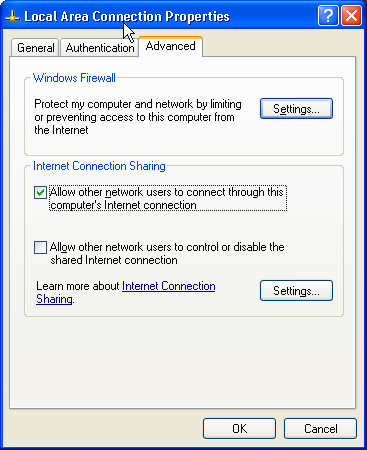
- Click “Ok” and the following dialog will pop up:
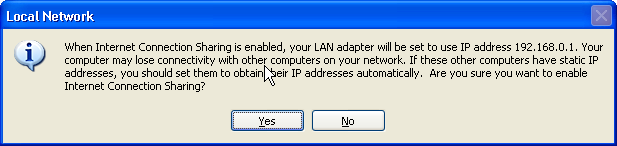
- Click “Yes”. And click “Ok” to close the next dialog.
- This completes the configuration of the network.

- Now, you have finalized, the network configuration.
- The link contains instructions, I already showed you.
- Click on “Continue setup”
- Now, you will return to the installation of the TopologiLinux:

- Select “Continue setup in coLinux mode”.
- If the console that pops up does not stay open, then REBOOT the computer.
- Start TopologiLinux from the Start Menu:

- The following Screen will come up
- Press “Enter” to continue with the US Keyboard.
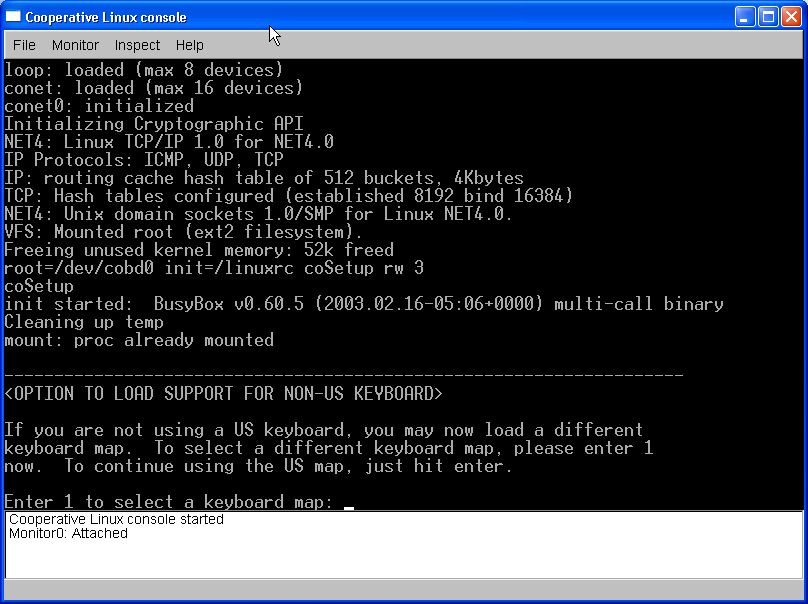
- As the screen below appears, press “Enter”:
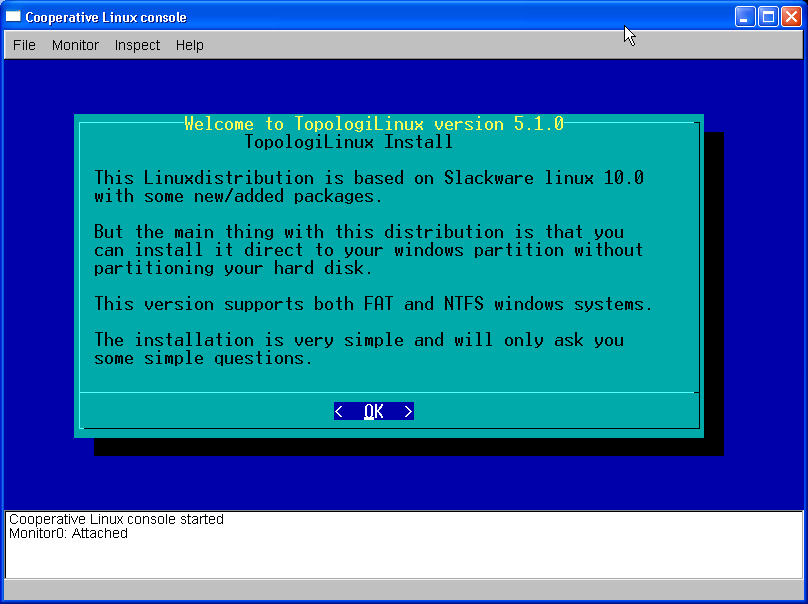
- Again press “Enter” for the screen below: (this is the linux ext3 filesystem)
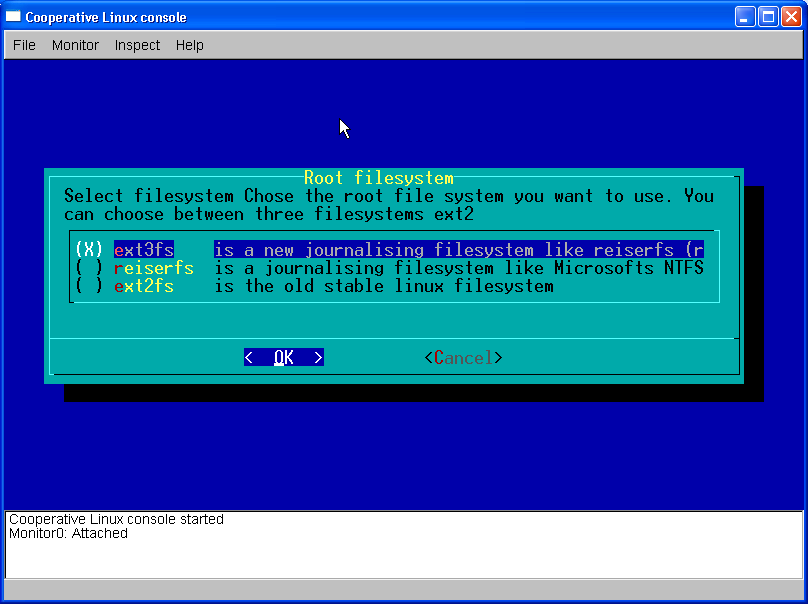
- Now, we are going to install the software that we need.
- By default all boxes are going to be selected.
- However, make that all boxes are selected.
- To navigate use arrow keys, tab, and space bar.
- You can simply press “Enter”
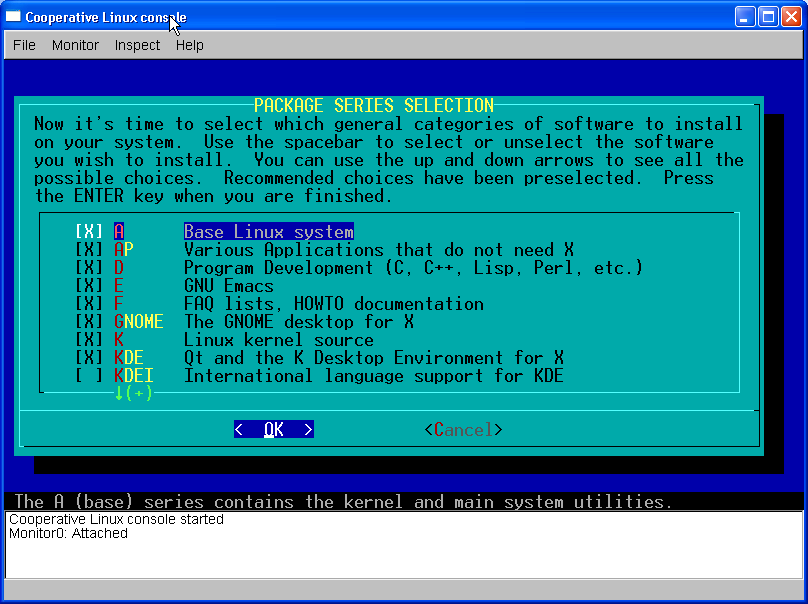
- Choose the full installation in the next screen: (i.e. just press “Enter”)

- Then the install will start and you will be notified when everything is done:
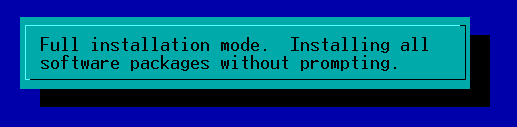
- After a while (maybe 30-45 minutes) you will see the screen:

- Close all the windows applications, eject CD 1 and insert CD 2.
- Then press “Enter”.
- After the installation from the CD 2 ends, you will be prompted with the following screen.
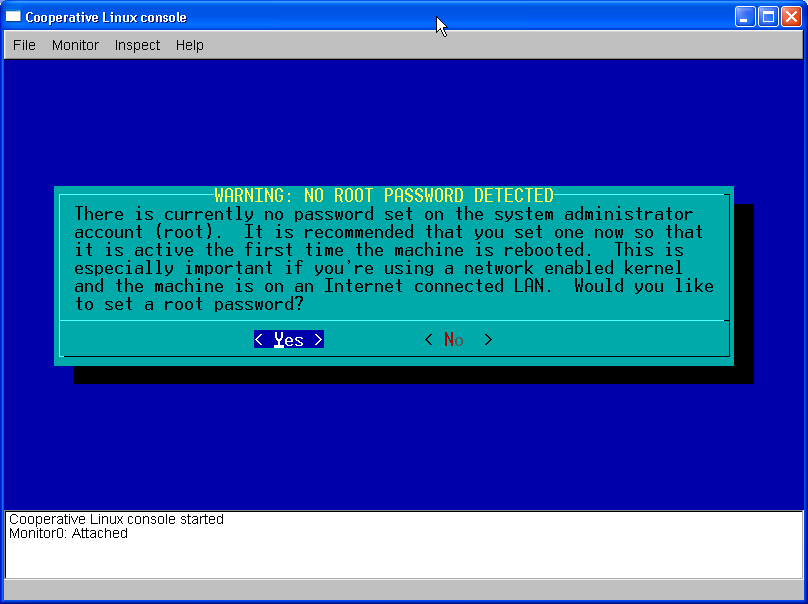
- Press Enter to set the root password. root is the administrator account in Linux.
- When you enter the password, nothing will be printed on the screen.
- It will look like nothing happened. Though, the password was inserted. Press enter after entering your password. You will be warned if your password a six letter word, as being simple. Just reenter it to use that password.

- After setting the password, press “Enter”:
- Finally, you should get to the screen:
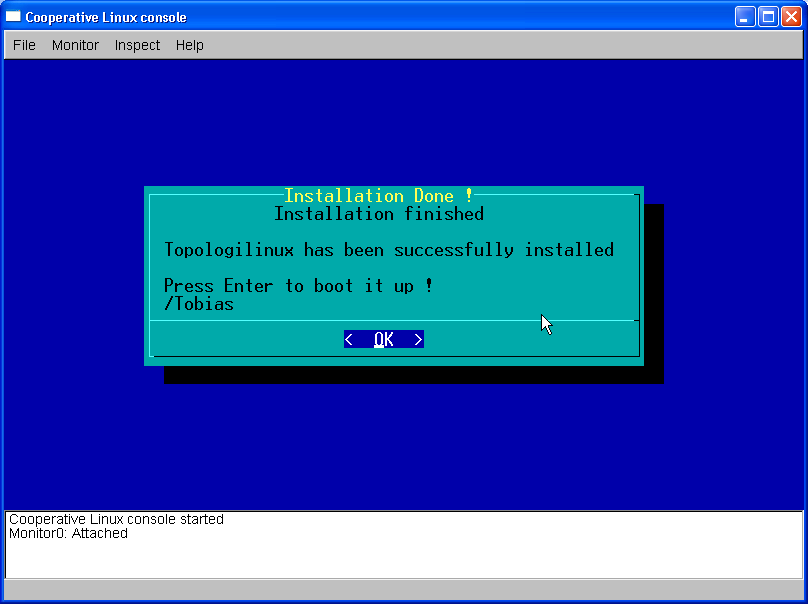
- Restart the computer and choose "TopologiLinux 5.1.0" from the boot menu using the arrows.
For the rest of this process you need to follow these instructions and you will not have any
graphical help because it is configured in Linux.
- From the list of options that will come up choose the first option.
- The hard disk will be checked. Just wait till the process ends.
- Login as root.That is
- Username: root
Passowrd: ****** (whatever you chose before)
- Type "setup" and press enter.
- Press Enter to select "Yes" to configure the graphical interface.
- Press Enter again to the following screen.
- Press Enter to auto-detect the Monitor.
- Press Enter to use 24 bit graphical display. (that is 16 million colors)
- Use arrows to choose the US Keyboard and press Enter.
- Use arrows to choose 1024x768 resolution and press Enter.
- Just press Enter in the next screen even if you don't have a wheel mouse.
- Next, a "windows like" display that will ask you if you can see the graphical interface.
Choose "Yes" if you can see it.
- Next you will be asked to configure the Sound Card. Press Enter to confirm.
- Press Enter to select the Intel card that is already selected.
- Press Enter to confirm modification to /etc/modules.conf.
- Press Enter to complete the configuration.
- Just wait till the database scrollkeeper is updated.
- You may choose the first PCI Modem from the next list. That is /dev/ttys4.
Press Enter to complete.
- Configure the time in the next screen as you please. I would suggest Eastern Time.
- Next you will be asked to Configure the Network. Press Enter to proceed.
- You may call you computer whatever you wish. Host Name = Your Computer Name
- Next you will be asked to define the domain. Choose berea.edu.
- Next you will be asked to configure the DHCP Settings.
Press Enter to keep the selected settings.
- Next don't enter anything. Press Enter to finalize.
- Scroll down and select: (after making the following selections press Enter to complete)
-
rc.cups -> printing
rc.samba -> network configuration
- You don't have to choose the fonts. Press Enter to not try the fonts.
- Set clock to the local time. Select the US/Eastern time.
- Press Enter to select KDE.
- Insert the TopologiLinux CD1 to choose the CD-Rom device. Press Enter to choose "Yes"
- Restart the computrer by typing reboot.
- When the computer restarts choose the Windows OS.
- Start TopologiLinux from the start menu in windows.
If you get Errors, wait till all your start up programs start.
Retry till it starts.
- Wait till everthing boots up properly and Login as root (or any account you may have created).
- Type "vncserver" and press Enter.
- Then, type "./.vnc/xstartup" and press Enter.
- Now, go to the TopologiLinux in the start menu and start "Topologilinux X".
Ta daaaa! You have now linux on your computer.