Introduction to Robotics

Designing a simple program
Objectives
- Begin Using RoboLab
- Begin to learn about icon-based programming
- Begin to learn about actuators and effectors
Tools and Parts Needed
- Constructed 2-wheel robot with 6 batteries
Glossary
- RoboLab is icon-based programming language based upon the LabView language.
- Firmware consists of programs which are installed semi-permanently into memory.
The RoboLab Software
In order to avoid a software conflict between the Windows 7 operating system and LabView (which under girds RoboLab), we will be running RoboLab in a virtual machine. We will set up this virtual machine in class.
Then we will run RoboLab from within the virtual machine.
-
The Administrator Area of
RoboLab
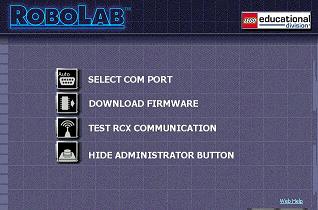
- In RoboLab choose the administrator button:

- Then, after placing your robot 4 inches in front of your
IR tower, test RCX communication:
Note that:
- Selection of a Communication Port (COM Port) is generally done automatically.
- DO NOT DOWNLOAD THE FIRMWARE UNLESS YOU REALLY NEED TO DO SO. Downloading firmware takes several minutes and will only need to be done when all batteries have been removed for too long. Note that Firmware consists of programs which are installed semi-permanently into memory. (The room will need to be somewhat darkened when downloading the firmware.) The firmware will already be installed on the robot unless you remove all of the batteries, so please do not do this.
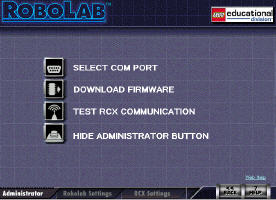
- Click on Administrator button in order to explore the
options available.
In this part of the Lab, your team will begin exploring options on your
own. In particular, your team should
work to discover what other administrative options are available
besides downloading firmware..
 Be sure to
explore the RCX setting tab at the bottom of the screen. Feel free to
make changes, but note that the RCX IR power should be kept at low
unless you need the IR tower to be a long distance from the RCX unit
when downloading programs.
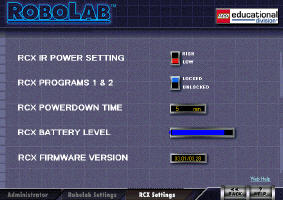
Be sure to
explore the RCX setting tab at the bottom of the screen. Feel free to
make changes, but note that the RCX IR power should be kept at low
unless you need the IR tower to be a long distance from the RCX unit
when downloading programs. The RCX comes with 5 program slots. Slot 1 and 2 are preprogrammed with default programs which are automatically locked programs, leaving only 3 slots to download your own programs.
 You can unlock the
first two slots by selecting the second option and changing to unlock.
If you want to get the default programs back, you can just download the
firmware again.
You can unlock the
first two slots by selecting the second option and changing to unlock.
If you want to get the default programs back, you can just download the
firmware again. Try reducing the Power Down Time - this will turn off the RCX unit more frequently but will save on your batteries.
Test the battery level as well to see how much power is left.
Test the RCX Communication icon. If it is working, you will hear a "rising sweep" noise from the RCX unit.
Note that you will need to discuss what you discover in the Administrator area in your Lab Report
- Begin program
- Send power to motors A and C for 1 second each
- Stop all motors
- End program
- Scribe and Robot Handler: This person will guide the discussion and type the Lab Report as you work on this lab. The scribe should have Word (or another editor program) open on his/her laptop. This role also handles the robot.
- Programmer: This person will be the primary person responsible for creating and running the RoboLab program and will submit the required RoboLab programs. The programmer should have RoboLab open on his/her laptop and should have the IR tower connected to his or her computer.
- Lab number: L2
- Time in Roles
- Scribe and Robot Handler:
- Programmer:
- Lightbot Code: Recall the following programming game Light Bot. Consider the following code from Light Bot. Describe what you think it will do:
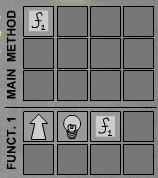
How would you program this BEHAVIOR in RoboLab? - Lightbot Limitations: Recall the Ligthbot icons:


 from the programming game Light Bot.
Some behaviors cannot be programmed in Light Bot, which is a limitation of the language. Describe a behavior which you believe cannot be programmed in Light Bot, but that you think CAN be programmed in RoboLab. Justify your thinking.
- RoboLab Administrative Options Testing: Briefly
discuss all the functions you can test or set in the
Administrative Options area. Pick the three most important
functions and describe these in this report. Also discuss why you
see them as most important..
- RoboLab Icons: An "icon" is a
meaningful image.
Just as in Ligthbot, RoboLab is icon-based, so it is important for each team-member to
understand the meaning of each RoboLab icon. Thus, for each of the
following icons, briefly describe the purpose and meaning of the given
icon:
- First Pseudo code design: Think about how to design ways in which one might make the robot travel in a circle and then create pseudcode which would result in the robot traveling in a circle forever. Type this pseudo-code into your lab report.
- First Robolab Program: Change to Program slot 3 by pushing the PRGM button until you are at the Program 3 slot. To create your own Robolab program, open RoboLab in the Inventor 4 mode. Then translate the pseudo-code which would result in the robot traveling in a circle forever into RoboLab code. Save this program yourusername1-yourusername2-L2.vi
- Programming Process: Desribe any changes you made from your pseudo-code to the RoboLab program. Did the program work as you expected or did you have to make any adjustments to it?
- Iteration on Pseudo code design: Design a modification to the your first program which in some way makes the behavior of the robot seem more sophisticated. Describe your modification and why you see it as more sophisticated.
- Interesting Behavior:
Play around with RoboLab. Describe a behavior you can program in
RoboLab which your team finds interesting. Explain hte behavior and why
you find it interesting.
- Comments and Suggestions: Discuss this lab in your team and write a paragraph that summarizes your team's reaction to RoboLab and to this lab. If there are any problems you encountered or any questions that remain, please ask! Also, be sure to include any suggestions you have for how this lab could be improved.
- Submission: The person who served as the primary Scribe should submit the report yourusername1-yourusername2-L2.docx and the person who served as the primary programmer should submit the RoboLab program yourusername1-yourusername2-L2.vi. If there is a third team member, that team member can submit the names of his or her other team members. Before leaving, you should make certain that all team members have all of the files (email them to one another, share them in Dropbox or pass them around on a flash drive.)
The Programmer Area of RoboLab
The instructor and TAs will help you to move around in this area. In general, we will work in teams. Be sure to try all of the jobs.
Two important windows in RoboLab are the Tools Window and the Function windows respectively, which can always be found under the Window Menu.
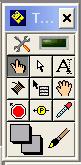
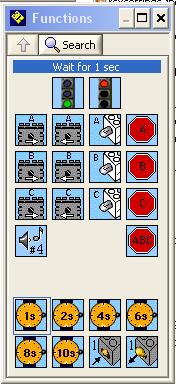
Pseudo-code
What is pseudo-code? The term "pseudo" is a Greek word means "false." Pseudo-code is widely understood to be a the step-by-step outline of a computer program which is written in plain English. It is in some sense a "false" computer program which can be easily translated into a computer language.In particular, pseudo-code is a step-by-step description of what an algorithm is supposed do, expressed in a formally-styled human language like English rather than in a programming language like RoboLab. After reading pseudocode a computer programmer should be able to create the computer program because the pseudo-code includes sufficiently many steps.
Example of simple pseudo-code program for a two wheeled RCX robot which drives forward for 1 second:
Computer Program written in RoboLab
A computer program is an algorithm written in a language which can be directly translated into a code that can be executed by the computer or robot.A RoboLab
program which translates the pseudo-code program above into
the computer programming language RoboLab:

Your Team Roles
In most labs we will have the roles which will be rotated through


